Macro Hooks
Macro hooks add your own steps to the start and end of every tool change. You build each hook from blocks in a block editor.
The most common use is parking a dust boot before a tool change and retrieving it afterwards.
Profile Section
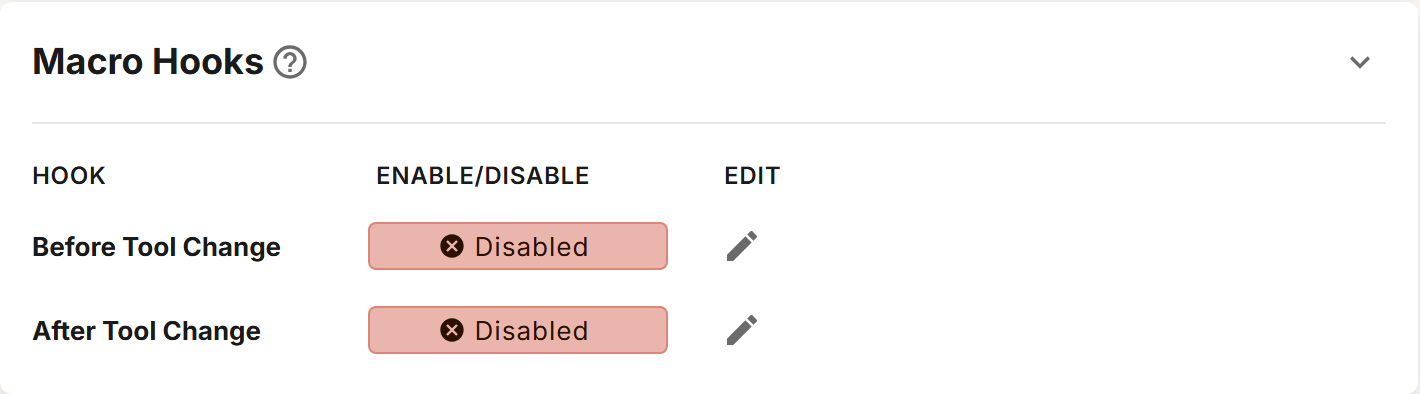
The section lists two hooks, Before Tool Change and After Tool Change. Each row has a chip that shows whether the hook is Enabled or Disabled, and an edit button.
| Hook | When it runs |
|---|---|
| Before Tool Change | At the start of a tool change, before the tool change's own steps. |
| After Tool Change | At the end of a tool change, after the tool change's own steps. |
A hook's code is built into the generated tool change macro, so regenerate your macros after you change a hook. See Macros.
Modes your After Tool Change hook sets, such as G91, don't carry into your program: the tool change restores the program's modes after the hook.
A hook must be saved from the editor before it can be enabled. Edit and save the hook first, then click its chip to change it to Enabled. Disabling a hook keeps its blocks, so you can enable it again later.
If a hook you disabled earlier will not enable, and shows "Hooks must have saved content before being enabled.", open its editor and click Save once, then enable it.
On Masso G3, a hook saved before the editor offered Auxiliary Output blocks keeps its old code until it is saved again: open each hook, check its blocks, and click Save.
Editing a Hook
Click  on the hook's row to open the block editor.
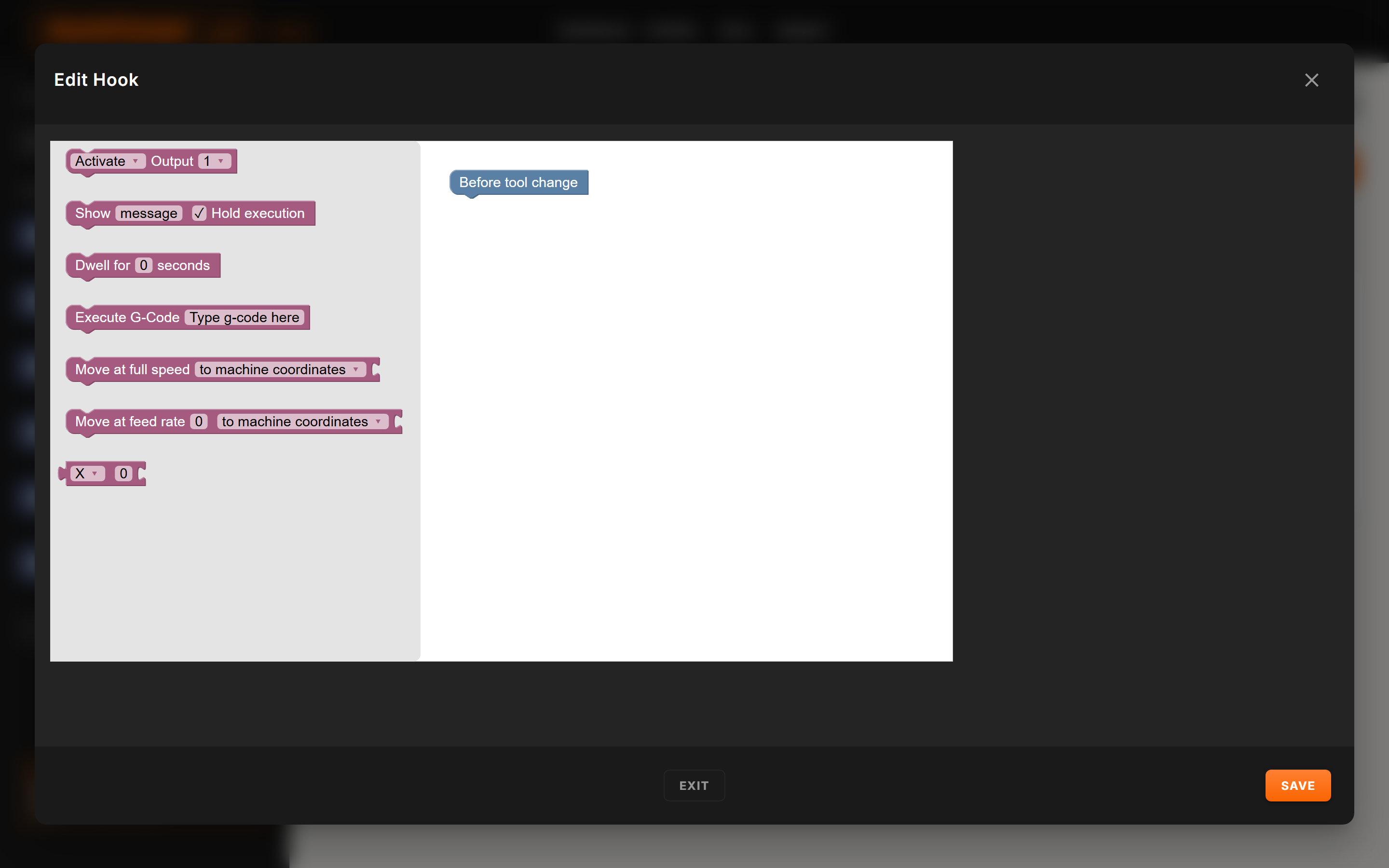
Each hook's editor starts with its hat block, Before tool change or After tool change. Drag blocks from the menu on the left and stack them under the hat block. Only blocks connected to the hat block run: blocks left unconnected are disabled. Click Save to keep your changes, or Exit to leave the editor.
Blocks
| Block | What it does |
|---|---|
| Activate / Deactivate an output | Turns one of your controller's outputs on or off: Output 1 to Output 4 on FluidNC and SienciHAL, P0 to P8 on grblHAL, and Auxiliary Output 2 to Auxiliary Output 16 on Masso G3. |
| Show a message | Shows a message. Tick Hold execution to pause until you continue. On Masso G3, a message shows at most 34 characters. |
| Dwell | Waits for the number of seconds you enter. |
| Execute G-Code | Runs the line of G-code you enter. |
| Move at full speed | Moves the axes you choose, to machine coordinates, to work coordinates, or incrementally. |
| Move at feed rate | The same, at the feed rate you enter. |
Blocks that run steps only when an input is on or off are not available yet.