Dust Cover
Dust covers are included with the RapidChange ATC Premium models. The dust cover must be wired to an auxiliary output on your Masso G3, then selected and enabled here.
The section is shown only for a magazine with a dust cover. On a profile with more than one magazine, it shows the magazine selected in the Magazines card, and each magazine's dust cover is enabled separately.
Chips
| Chip | Description |
|---|---|
| Enabled / Disabled | Turns dust cover control on or off. A new profile starts with it Disabled. While it is disabled, the section cannot be expanded, and the tool change does not open or close the cover. |
Fields
| Field | Description |
|---|---|
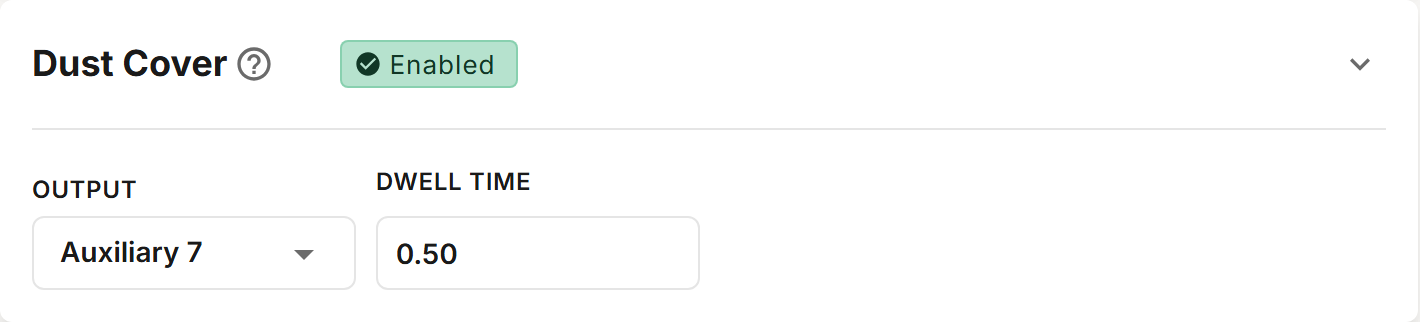
| Output | The Masso auxiliary output the dust cover is wired to: Auxiliary 2 to Auxiliary 16. Auxiliary 1 is not offered. Outputs already used by the Pocket Tracker are disabled in the list. The tool change opens the cover by turning this output on and closes it by turning the output off. |
| Dwell Time | Seconds to wait after opening the cover, so it is fully open before the spindle moves. Default 0.5 seconds. A dwell over 10 seconds is flagged as unusually long. |
The cover output must not be one of the Pocket Tracker's outputs. On a new profile, check that the output shown is free before you enable the cover. If it is not, the profile has errors, such as "Duplicated with Dust Cover Output", and All Macros is unavailable.
When the cover opens and closes
The cover opens at the start of every tool change, before the spindle moves. It closes once the new tool is loaded:
- With the tool setter Internal to the magazine, after the tool is measured.
- Otherwise, before the spindle moves to the tool setter.
See Tool Setter Position.
Wiring
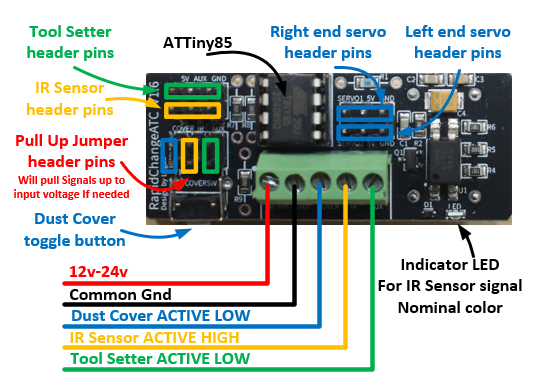
The dust cover signal from the controller requires an ACTIVE LOW output or relay. 5V–30V is required for the toggle button on the magazine to operate. The cover closes when the signal is pulled to ground. On some controllers, a jumper is required to pull the signal up. This is accomplished by jumping the header pins outlined in blue below.