Macros
All macros for Centroid are generated as M-Code macro files. Each file contains the functionality for the associated M-Code that the file is named after. All generated files should be placed in the cncm folder of your Centroid CNC12 installation.
Validation
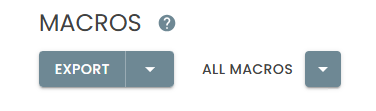
The configurator validates your profile and only allows macros to be generated that pass validation. When validation errors exist, the error icon appears next to the section title. Hover over it to view details about the error.

Export Options 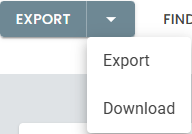
| Option | Description |
|---|---|
| Export | Generates macros and places them unzipped into a local directory—either a flash drive for transfer or directly into the cncm folder. Only available if supported by your browser. |
| Download | Generates macros and downloads a zipped folder containing the selected package. The folder may be unzipped directly into the cncm folder. |
Macro Selection
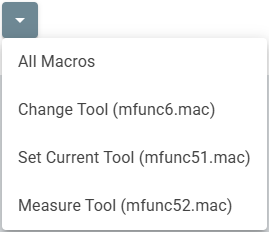
Use the dropdown to select which macros to generate. All Macros generates the complete set required for your profile. Individual macros can also be selected. Macros that fail validation will be disabled in the list.
Macro Reference
| Macro | File | Description |
|---|---|---|
| Change Tool | mfunc6.mac | Loads the selected tool, unloading the current tool as required. Usage: T1 M6 loads Tool 1. |
| Set Current Tool | mfunc51.mac | Sets the current tool to persistent storage. Normally only used during initial installation and setup. Usage: M51 |
| Measure Tool | mfunc52.mac | Executes the tool measurement routine for the currently loaded tool. See Tool Measurement for configuration details. Usage: M52 |