Macros
All macros for FluidNC are generated as .NC files. Each file contains the functionality for the associated M-Code that the file is named after. All generated files should be placed on the SD card is a sub directory and referenced in the config.yaml file in the spindle section.

Validation
The configurator validates your profile and only allows macros to be generated that pass validation. When validation errors exist, the error icon appears next to the section title. Hover over it to view details about the error.

Find Z Position is always available since it's needed to configure the Z Position value. Other macros require valid configuration before they can be generated.
Before running Find Z Position, ensure you have configured the appropriate input in the Tool Detection section for the IR sensor.)
Export Options 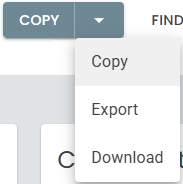
| Option | Description |
|---|---|
| Copy | Generates the macro selection and copies the contents to the clipboard. Only individual macro selections are available when this option is selected. |
| Export | Generates the macro selection and exports the file(s) into a selected local directory. Only available if supported by your browser. |
| Download | Generates macros and downloads a zipped folder containing the selected package. |
All Macros
With this selection, the following macros will be generated as they are required according to your ATC profile.
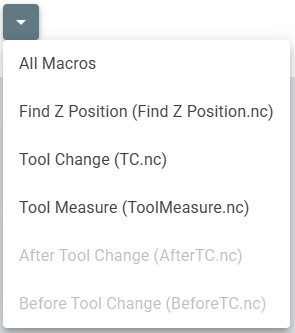
Find Z Position (Find Z Position.nc) - If the IR beam is broken, moves up until the IR beam is clear, record the Z machine coordinate of the position at which it clears. Usage run file with a tool loaded, in it's pocket deep enough to break the IR beam.
Change Tool (TC.nc) - Loads the selected tool, unloading the current tool as required. Usage:
T1 M6loads Tool 1.Measure Tool (ToolMeasure.nc) - Execute tool measurement for the currently loaded tool. Usage run file
Find Z Position
With this selection only the Find Z Position macro will be generated.
YAML FILE ADDITIONS
Spindle Section
The last line of the spindle section tells FluidNC where to find the TC.nc Macro that handles the tool changes.
The Macros can be stored either on the local FS or on an SD card. Only use one SD card is recommended.
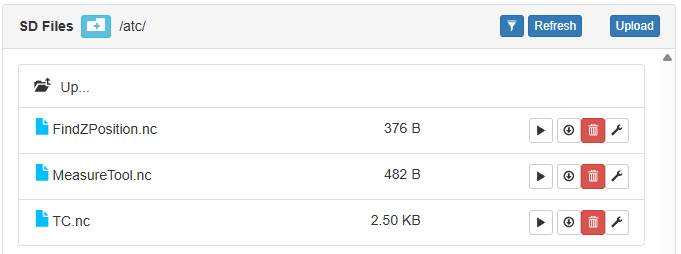 The example below shows it being stored on the SD card in the sub directory "atc".
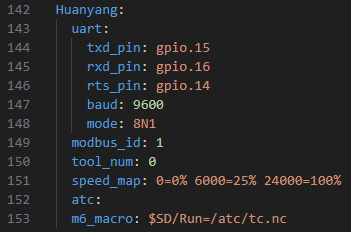
If you have configured a spindle type other than ModbusVFD in your YAML, you must set the spinup_ms and spindown_ms to a value equal to or larger than the time it takes your spindle to reach the desidered speed.. ** ModbusVFD will wait for your spindle to reach the desired speed before continuing and does not require the delay. **
User IOs
The Dust Cover output and IR Sensor input must be assigned in the user outputs/inputs section as in the example below. Use the appropriate GPIOs for your board.
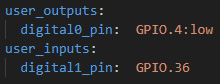 In the web UI the output in this example would be designated P0 and the input as P1
Tool Setter
The Tool Setter can be assigned to the probe pin or the tool setter pin.
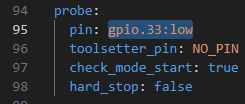
After you initially power up your fluidnc board, you must tell fluidnc what tool is currently loaded by using M61Q<X> where x represents the tool number currently in the spindle. If no tool is loaded use tool number 0.