Getting Started
Centroid runs automatic tool changes from M-code macro files that your profile generates. You set up the profile in the web app, generate the macros, and place them in the C:\cncm folder of your Centroid CNC12 installation. When a program reaches T1 M6, CNC12 runs the Change Tool macro (mfunc6.mac), which unloads the tool in the spindle, loads tool 1, checks both with the IR beam and, unless Tool Measurement is disabled, measures the new tool.
What You Need
- A RapidChange ATC magazine, Linear or Modular, and the activation code that came with it.
- A Centroid controller running CNC12, and access to its
C:\cncmfolder. RapidChange ATC is tested with Centroid's current CNC12 releases. - The magazine's IR sensor wired to a controller input, and, if your magazine has one, the dust cover wired to a controller output. See Tool Detection and Dust Cover.
- A tool setter wired to a controller input. See Tool Setter Position.
Setting Up
1. Activate the magazine and create the profile
In the web app, choose Activate a Magazine. The Activate New Magazine dialog walks you through:
- Enter Activation Code: the code you received with your magazine.
- Select Activation Type, if offered: activate it as a standalone magazine, or extend a magazine you already have.
- Select Motion Control: choose Centroid.
- Select Initial Data, if offered: Create New Profile, or add the magazine to an existing Centroid profile to use more than one magazine.
- Select Setup Units: Imperial (Inches) or Metric (Millimeters).
- Enter Profile Name: up to 30 characters.
When you finish, the new profile opens.
2. Work through the profile's sections
The profile is laid out on tabs: Magazine (Magazines when the profile holds more than one), Tool Setter, Global and Detail. Every position is entered in MACHINE COORDINATES.
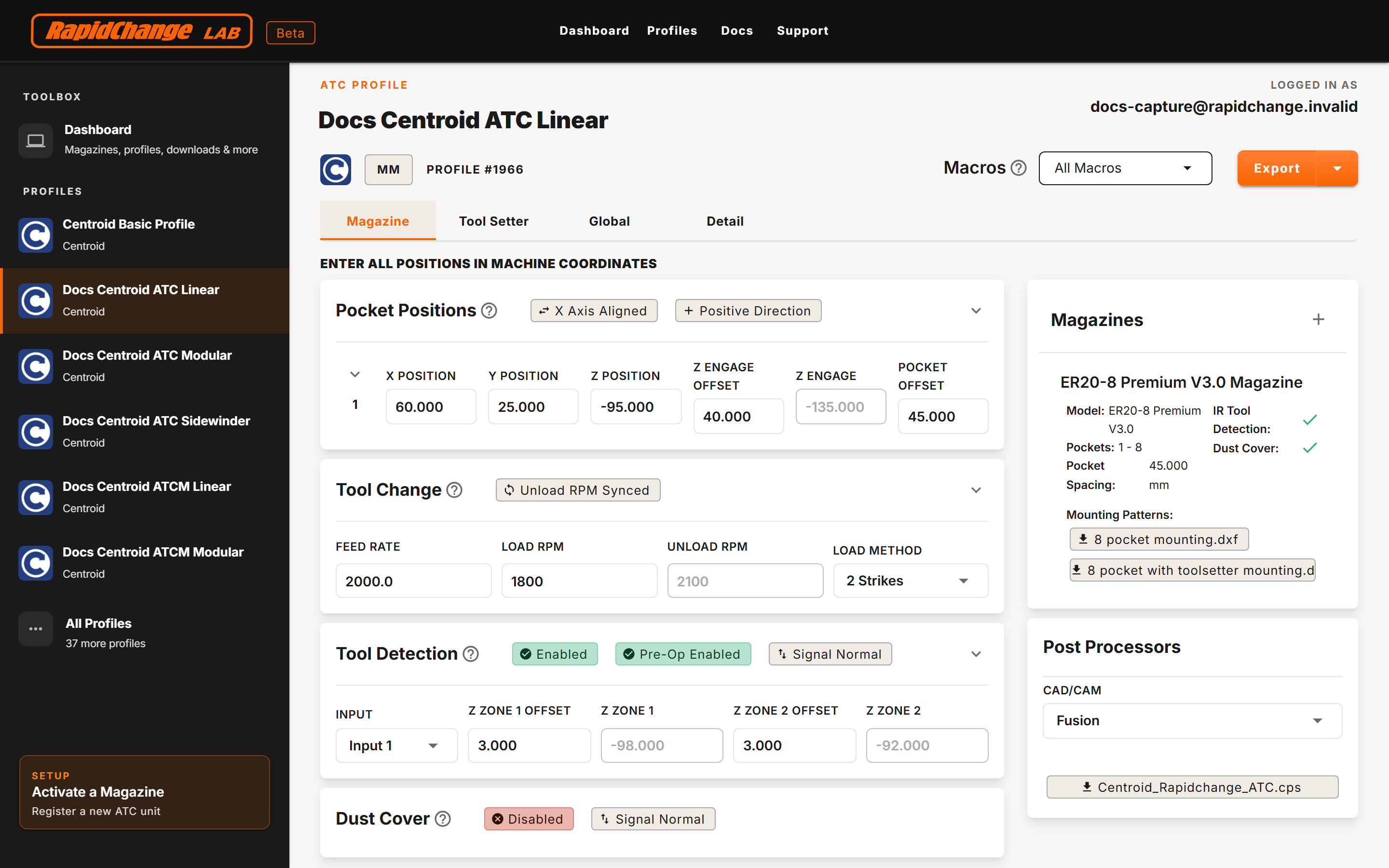
Set up the sections in this order. Each has its own help page.
- Tool Detection (Magazine tab): select the IR sensor's Input. Find Z Position reads the beam through it.
- Move Heights (Global tab): set Z Clearance before anything else moves.
- Pocket Positions (Magazine tab): set X Position and Y Position. Z Position comes from Find Z Position in step 4.
- Find Z Position: see below.
- Tool Change (Magazine tab): spindle speeds, feed and strikes.
- Dust Cover (Magazine tab): enable it if your magazine has one.
- Tool Setter Position and Tool Measurement (Tool Setter tab): where and how tools are measured.
- Manual Position (Global tab): where tools are changed by hand.
On a profile with more than one magazine, select each magazine in the Magazines card and set up its Pocket Positions, Tool Change, Tool Detection and Dust Cover.
3. Generate the macros
The Macros control is in the profile's header. Choose a macro from its list, then Export or Download:
- Export writes the macros, unzipped, into a folder you choose:
C:\cncmitself, or a flash drive to carry them there. It is offered only when your browser supports it. - Download saves the macros as a zip, or a single file when you chose one macro. Unzip it into
C:\cncm.
All Macros generates the full set for your profile. It is unavailable, along with every macro except Find Z Position and Calibrate Tool Setters, while the profile has errors: the box under the control reads "Profile has errors - macros unavailable" and lists them.
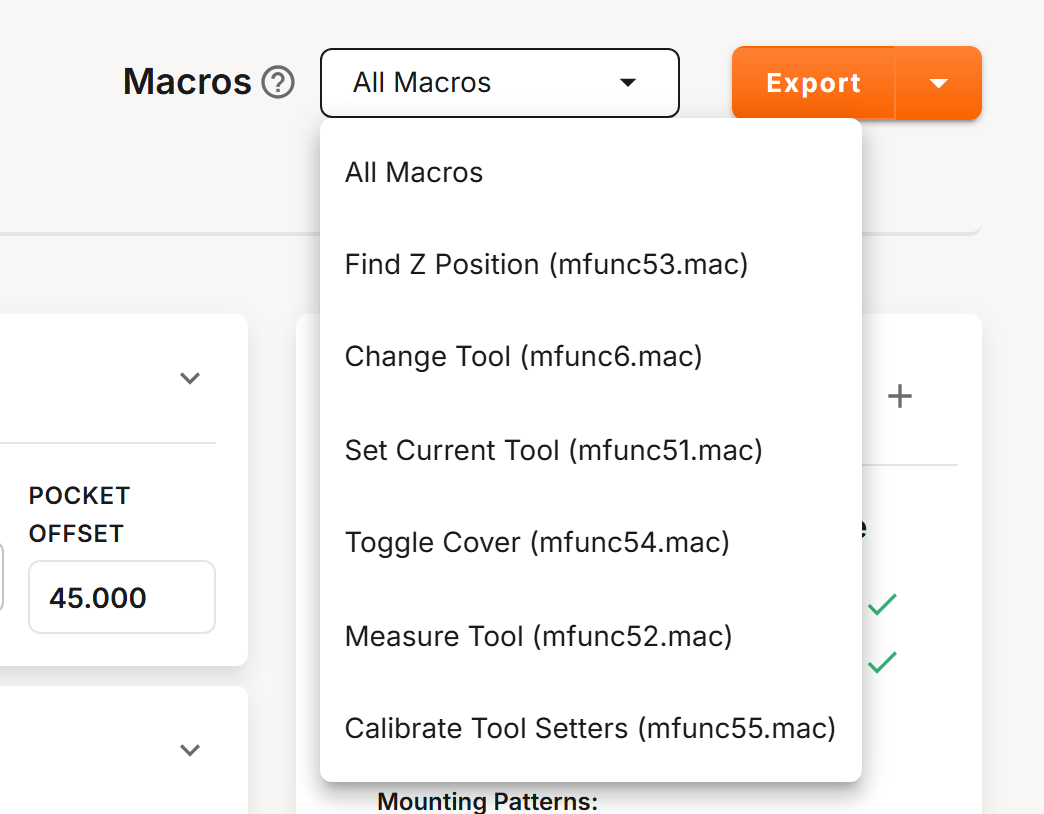
| Macro | File | Usage |
|---|---|---|
| Change Tool | mfunc6.mac |
Tn M6 |
| Set Current Tool | mfunc51.mac |
M51 Tn |
| Measure Tool | mfunc52.mac |
M52 |
| Find Z Position | mfunc53.mac |
M53 |
| Toggle Cover | mfunc54.mac |
M54; part of All Macros when a dust cover is enabled |
See Macros for each one.
Generate the macros again, and replace the files in
C:\cncm, every time you change the profile. The macros hold the profile's values; CNC12 does not read the profile.
CNC12 picks up new macro files without a restart.
4. Find Z Position
Find Z Position is available before the profile is complete, because Z Position is one of the values the profile needs.
- Generate Find Z Position (mfunc53.mac) and place it in
C:\cncm. - With a tool in the spindle, lower it into the first pocket far enough to break the IR beam.
- Run
M53. The spindle rises in 0.1 mm steps until the beam is clear, then stops. - CNC12 shows the machine-coordinate Z where it stopped in a pop-up. Enter it as Z Position in Pocket Positions, and save.
The full procedure, and the method for magazines without an IR sensor, are in Pocket Positions.
5. Your first tool change
- Finish every section until the profile shows no errors, then generate All Macros and place them in
C:\cncm. - With the spindle empty, run
M51 T0to record that no tool is in the spindle.M51 Tnsets the current tool to the T number you give it, without moving the machine. - Put a tool in pocket 1.
- Run
T1 M6, with your hand near the E-stop. Watch the spindle travel to pocket 1, load the tool, check it with the beam and measure it on the tool setter. - Run
T0 M6to watch an unload. The tool returns to pocket 1 and the spindle is left empty.
Before the first tool change, check Z Clearance, Z Position and the pocket positions. Every move to a pocket is made in machine coordinates from these values.
Where to Go Next
Each section of your profile has its own page:
- Pocket Positions: where the magazine is, and finding Z Position.
- Move Heights: Z Clearance and the heights between pockets.
- Tool Change: spindle speeds, feed and strikes.
- Tool Detection: the beam checks.
- Dust Cover: enable it if your magazine has one.
- Tool Setter Position and Tool Measurement: where and how tools are measured.
- Manual Position: where tools are changed by hand.
- Macros: every macro and how to export it.